

Treasure hunting training
How to Install Satellite Metal Scan APK Step by Step
Feb
Installing a specialized mobile application can sometimes feel complicated, especially when the name includes words like satellite, scan, or advanced detection. But here’s the truth: installing the Satellite Metal Scan program is just as simple as installing any other Android app on your phone.
If you’ve recently purchased the program and received your download files, you’re probably asking:
- How do I install the Satellite Metal Scan APK?
- Do I need technical skills?
- Is there any limit to installing it on multiple phones?
- What if the app closes automatically after opening?
- What files are included in the package?
In this complete guide, I’ll walk you through how to install the Satellite Metal Scan program step by step, explain common setup issues, clarify permissions, and show you exactly what to expect after download.
Let’s get started.
What Is the Satellite Metal Scan Program?
The Satellite Metal Scan program is an Android-based application designed to provide advanced satellite-style scanning features for metal detection analysis and geographic exploration.
It installs exactly like any standard Android application and does not require technical programming skills or complicated configuration.
If you know how to install a regular mobile app, you already know how to install this one.
What You Receive After Purchase
After purchasing the program, you will receive a complete downloadable package. This package typically includes:
- ✅ Satellite Metal Scan APK file (main installation file)
- ✅ ZIP file version (for easier transfer or backup)
- ✅ PDF user manual
- ✅ Step-by-step video tutorial
- ✅ Installation guidance files
This means you’re not just getting the app, you’re receiving a full training package that walks you through installation and usage.
File Formats Explained
| File Type | Purpose |
|---|---|
| APK | Direct Android installation file |
| ZIP | Compressed version of APK for easier download |
| Written installation and usage guide | |
| MP4 Video | Visual training for scanning process |
System Requirements Before Installation
Before installing the Satellite Metal Scan APK file, make sure your phone meets these basic requirements:
- Android operating system
- At least 200MB free storage
- Internet connection (for downloading files)
- Permission to install apps from unknown sources
No advanced hardware is required. The installation process works like any normal Android application.
How to Install the Satellite Metal Scan Program Step by Step
This is the part most users search for: how to install Satellite Metal Scan program step by step.
Follow these simple instructions carefully.
Step 1: Download the Installation Files
After purchase:
- Download the APK file directly to your mobile phone
OR - Download the ZIP file and extract it
If you downloaded the ZIP file:
- Open your File Manager
- Tap the ZIP file
- Select Extract
- Locate the APK file inside
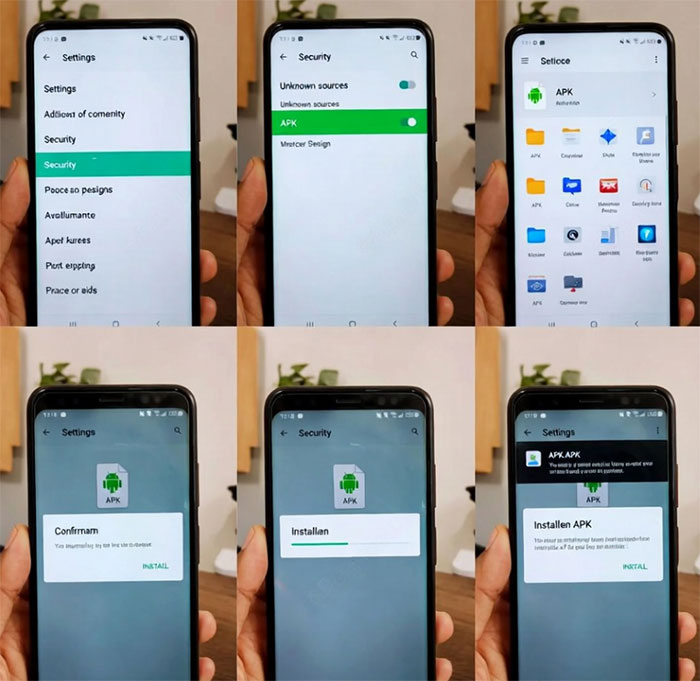
Step 2: Enable Installation from Unknown Sources
Since the app is not downloaded from Google Play, you must allow manual installation.
- Go to Settings
- Tap Security
- Enable Install unknown apps
- Allow permission for your browser or file manager
This is standard for installing any APK manually.
Step 3: Install the APK File
- Open the APK file
- Tap Install
- Wait for installation to complete
- Tap Open
That’s it.
There is no complicated activation process and no technical configuration required during installation.
How to Fix App Closing Automatically (Permission Setup)
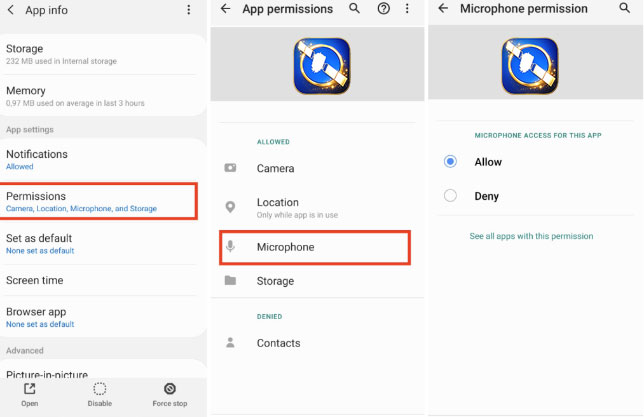
Some users report that after installation, when they open the Satellite Metal Scan program, it may automatically close.
This is not a bug.
It simply means the app requires full permissions to operate correctly.
Here’s how to fix it:
Step 1: Open Phone Settings
Go to:
Settings → Apps → Satellite Metal Scan
Step 2: Open Permissions Section
Tap Permissions.
Step 3: Enable All Required Permissions
You must allow:
- Location access
- Storage access
- Camera access
- Media access
- Any additional system permissions requested
Enable all permissions to ensure the program works properly.
Once permissions are granted, open the app again—it should launch without any issues.
Can You Install It on Multiple Phones?
One common question is:
Is there any limitation for installing Satellite Metal Scan on multiple mobile devices?
The answer:
There is no restriction on the number of phones you can install the program on.
You can:
- Install on your primary device
- Install on backup phones
- Install on team member devices
- Use on multiple Android smartphones
There is no built-in device limit within the installation process.
Using the Program After Installation
Once installation is complete and permissions are enabled, you can begin using the application.
Inside the downloaded package, you received:
- 📘 PDF installation and operation guide
- 🎥 Video training tutorial
- 📂 Instruction files
I strongly recommend watching the video tutorial before starting your first satellite scanning session.
The video explains:
- How to configure scanning settings
- How to select scan areas
- How to interpret scan visuals
- How to optimize results
The PDF manual provides written instructions if you prefer reading over video.
Troubleshooting Common Installation Issues
Here are the most common problems and quick fixes:
1. Installation Blocked
Problem: “App not installed.”
Solution:
Enable “Install from Unknown Sources” in Security settings.
2. App Opens Then Closes Immediately
Problem: App exits automatically.
Solution:
Go to Settings → Apps → Permissions and allow all permissions.
3. ZIP File Won’t Open
Problem: Cannot extract ZIP file.
Solution:
Use any file manager app to extract it first before running the APK.
4. Insufficient Storage
Problem: Installation fails.
Solution:
Free up at least 200MB of space and try again.
Why the Installation Is Simple
Many users assume that satellite-based applications are complicated.
But the Satellite Metal Scan mobile app:
- Installs like any regular APK
- Requires no coding
- Requires no external hardware
- Has no advanced setup
- Does not require root access
If you’ve ever installed an app manually, you already know how to do this.
FAQ – Satellite Metal Scan Installation
1. Is the Satellite Metal Scan APK safe to install?
Yes. The APK file is provided directly after purchase and installs like any other Android application.
2. Do I need technical knowledge to install it?
No. The installation process is beginner-friendly and requires only basic Android usage skills.
3. Can I install it on more than one phone?
Yes. There is no limitation on multiple device installation.
4. Why does the app close automatically after opening?
Because required permissions are not enabled. Grant location, storage, camera, and other permissions in Settings.
5. Do I receive instructions after purchase?
Yes. The package includes:
- APK file
- ZIP file
- PDF guide
- Video tutorial
6. Do I need internet after installation?
Internet is required for downloading. Some scanning features may require connectivity depending on usage.
7. What Android version is required?
Most modern Android devices support APK installation. Ensure your device allows manual app installation.
Conclusion
Installing the Satellite Metal Scan program is straightforward, fast, and user-friendly.
After purchase, you receive:
- The APK installation file
- A ZIP version for convenience
- A PDF user guide
- A step-by-step video tutorial
The installation works just like any other Android app. There is no complexity involved, no technical setup required, and no restriction on installing it on multiple devices.
If the app closes automatically after opening, simply go to:
Settings → Apps → Satellite Metal Scan → Permissions
Enable all permissions, and the issue will be resolved immediately.
Now that you know exactly how to install the Satellite Metal Scan program step by step, you’re ready to begin.
Download your files, install the APK, grant permissions, watch the training video—and start using the program with confidence.